
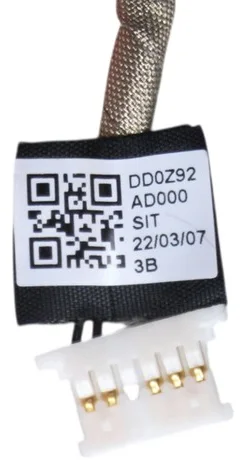
A DC jack is identified by the code printed on the label on its cable (for example DD0Z92AD000, DC30100OX00 or 6017B0295901) or, if it is soldered on, by its shape and measurements. Before buying, check that the fault really is the jack and not the charger.
The same laptop model can use different jacks: if in doubt, send us a photo of yours and the exact laptop model.
Have the cable code or the laptop model? Search for it
- In this guide:
- 1. Are you sure it’s the DC jack?
- 2. Which type of jack it has
- 3. Where the code is
- 4. What must match
- Common questions
1. Are you sure it’s the DC jack?
A laptop that won’t charge can be down to the charger, the DC jack or the motherboard. Before buying, check:
- It’s the jack if it only charges when you wiggle the plug, if the plug is loose or falls out, or if the jack is pushed in, loose or broken.
- It’s the charger if the laptop charges fine with another compatible charger. To choose one, see our charger guide.
- It may be the motherboard if the laptop still won’t charge with a working charger and a firm jack, or if there is a burning smell. In that case, it’s best to have a technician look at it.
2. Which type of jack it has
There are three types, and they are not interchangeable:
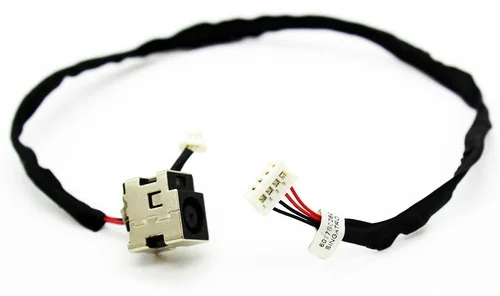
- Cable type: the jack sits in the case and a cable connects it to the motherboard with a plug. It’s the easiest to replace: no soldering needed.
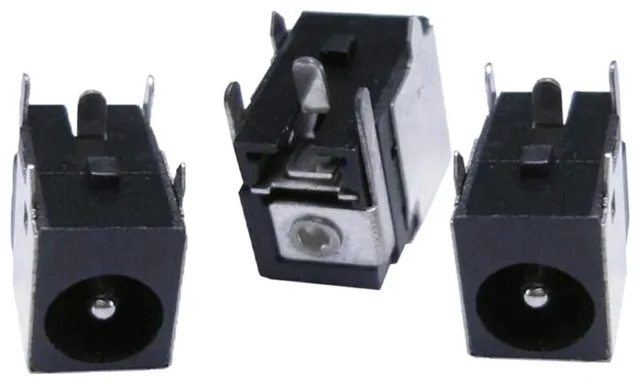
- Solder-on: soldered directly onto the motherboard. To replace it you have to desolder the old one and solder the new one.
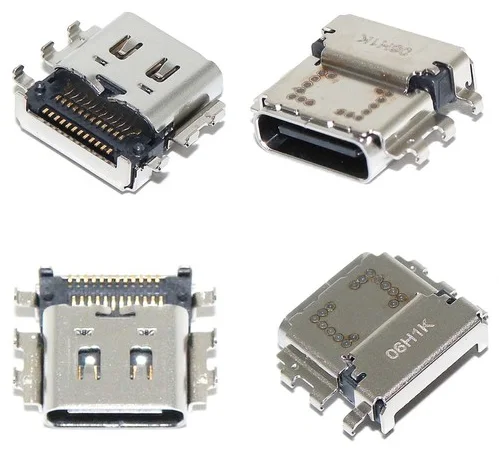
- USB-C: the laptop charges through a USB-C port. It is almost always soldered onto the motherboard or a small daughterboard.
3. Where the code is
On cable-type jacks, the code is on a label on the cable itself. To see it you need to remove the laptop’s bottom cover.
| Brand | Example codes |
|---|---|
| HP | 6017B0295901, 717370-FD6 |
| Lenovo | DC30100PD00, DC30100LE00 |
| Dell | DC301004AOL, 450.0EZ05.0001 |
| Asus | 1417-007M000, 1414-05HB000 |
| Acer | 50.MLQN7.001, 50.APD0N.001 |
| Toshiba | DC30100OX00, H000037850 |
Solder-on jacks don’t usually carry a code: they are identified by their shape, measurements and the laptop model.
4. What must match
Compare yours with the photos and details on the product page:
1The charger tip
The hole must be the same size as your charger’s tip (for example 7.4 × 5.0 mm with pin on HP and Dell, 4.5 × 3.0 mm, 5.5 × 2.5 mm, or rectangular on Lenovo). For USB-C, always USB-C.
2The cable and its plug
On cable-type jacks, the cable length, the number of wires and the plug that goes into the motherboard must be the same. Measure yours end to end and compare it with the product page.
3Shape and mounting
The shape of the jack’s body and how it is held in place (metal bracket, screw or slot in the case) must match. On solder-on jacks, the position and number of pins must match too.
4If it’s USB-C
There are many different USB-C ports: compare the number of pin rows, the mounting tabs and the height with the photo on the product page. Replacing one requires fine soldering on the motherboard: if you don’t have experience, we can replace it for you through our repair service.
What can be different
- Colour of the cable or sleeve: makes no difference.
- Manufacturer: original or compatible with the same shape; the warranty is the same: 3 years for consumers.
- Screws: not included; you reuse the ones from your laptop.
Common questions
I only have the laptop model. Is that enough?
Sometimes not: the same model can use different jacks depending on the version. Send us the exact model (from the sticker underneath) and a photo of the jack and its cable, and we’ll tell you which one it is.
Is it hard to replace?
The cable type is simple: open the laptop, unplug it from the motherboard and swap it. Solder-on and USB-C jacks need a soldering iron and experience. If you’d rather not, we can replace it for you through our repair service.
I’ve replaced the jack and it still won’t charge
Check that the cable’s plug is fully seated in the motherboard and try another charger. If nothing changes, the fault may be on the motherboard (the charging circuit) or in the battery: our repair service can check it.
I can’t find my jack on the website
Contact us with the cable code or a photo and the laptop model: if we can source it, we’ll tell you the lead time.
Would you rather we checked for you?
Send us a photo of the jack and its cable, plus your laptop model, and we’ll tell you which one fits, usually within 1 working day.